
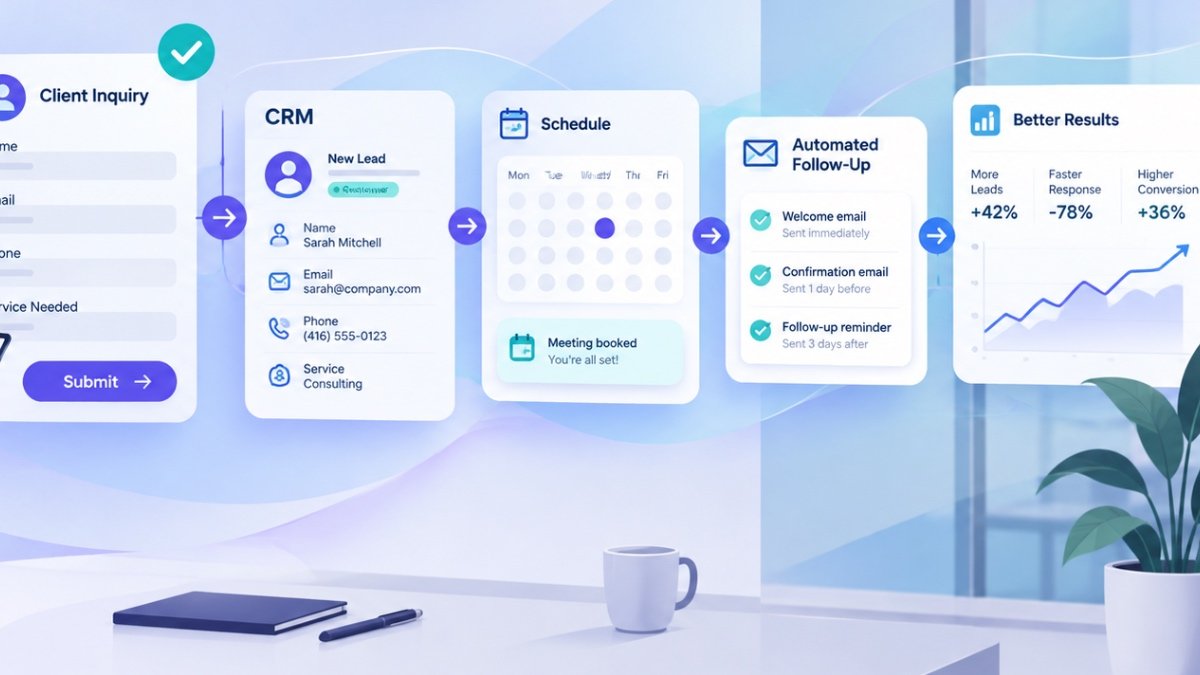
A potential customer fills out your contact form. Someone on your team reads it, copies the details into a spreadsheet, forwards an email, sends a reply and remembers to follow up a few days later. Sound familiar?
That routine might work when inquiries are occasional. But as a business grows, the small steps pile up. Messages get buried, information is entered twice, and good opportunities can go unanswered. Client intake automation connects those steps so inquiries move forward with less manual work.
Quick answer: Client intake automation connects your website forms, email, scheduling tools and customer relationship management (CRM) system. When someone submits an inquiry, the system can acknowledge it, create or update a contact record, notify the right person and schedule the next task. Your team stays responsible for decisions that need judgment.
For small businesses in Toronto and across Canada, the goal isn’t to build a complicated AI system. It’s to make sure every new inquiry has a clear next step—and nobody needs to copy the same information five times.
What is client intake automation?
Client intake is everything that happens between a potential customer’s first message and the moment your team is ready to serve them. It may involve a contact form, a discovery call, a quote request, a document checklist or an appointment.
Automation handles predictable handoffs between those steps. It doesn’t have to involve artificial intelligence. For example, sending a confirmation email after a form submission is a simple rule-based automation. AI may be useful later for summarizing longer requests or drafting a reply for review.
What an automated client intake process looks like
Imagine a Toronto consulting firm receiving a request through its website. Instead of a staff member manually forwarding the inquiry, the form sends the information to a CRM, assigns an owner and triggers an acknowledgment. The consultant reviews the details, responds personally and records the next action. If the task remains open, an internal reminder prompts follow-up.
That’s a connected workflow. Each step has a purpose, and the business can still choose where human approval is required.
Five client intake tasks worth automating first
1. Capturing inquiries in one place
When requests arrive through a website, email and other channels, important details can end up scattered. A structured form can collect the essentials: contact information, service needed, preferred timeline and a short project description. Relevant submissions can then be stored in one shared system.
2. Sending immediate acknowledgments
A confirmation lets someone know their request arrived and explains what happens next. It should set a realistic expectation rather than promise an instant personal response. For promotional follow-up emails or texts, businesses also need to consider Canada’s anti-spam requirements.
3. Routing requests to the right person
A property inquiry might go to a leasing coordinator. A new client request could go to a sales manager. A support question may need an existing account representative. Simple routing rules can direct each request without relying on someone to forward emails manually.
4. Updating customer records automatically
Form submissions can create or update CRM records, depending on the tools involved. Good setups include duplicate checks, clear ownership and a way to review uncertain matches before overwriting existing information.
5. Reminding your team to follow up
Not every prospect is ready to book immediately. Internal follow-up tasks can help staff remember outstanding quotes, requested documents or unanswered questions. Automated reminders work best when they’re tied to a real status in your workflow—not sent endlessly to every contact.
Real-world examples by industry
Professional services
A bookkeeping firm receives a consultation request, collects the basic service requirements and alerts the assigned team member. The prospect receives an acknowledgment while the firm reviews whether it’s a fit.
Real estate and property management
A rental inquiry is categorized by property and routed to the appropriate staff member. A separate maintenance form collects the location, issue and preferred contact method before creating a review task.
Healthcare and wellness administration
A wellness practice organizes nonclinical appointment requests and sends basic administrative confirmations. Sensitive personal or health information requires appropriate safeguards, access controls and careful review of applicable privacy obligations before automation is introduced.
Nonprofits and charities
A nonprofit uses a structured online application to collect information, notify a program coordinator and track the review stage. Applicants receive confirmation without sensitive attachments being circulated by email.
How to set up client intake automation without overcomplicating it
- Map the current process. Write down where inquiries arrive, who handles them and what happens next.
- Choose one recurring bottleneck. Start with a missed handoff, duplicate data entry or forgotten follow-up—not your entire business.
- Keep the form short. Ask for the information needed to make the next decision. Collect additional details later if appropriate.
- Connect your existing tools. Check whether your website form, email, CRM and scheduling software already offer suitable integrations.
- Set rules and exceptions. Decide who gets notified, when a human must review a response and what happens if a connection fails.
- Test and measure. Use sample submissions to check duplicate handling, notifications, consent and the accuracy of the data passed between systems.
Need help connecting the pieces? Flowmore provides custom forms and approval systems, CRM integration and customer automation, and business process automation for organizations with different workflows and software setups.
Before and after: what actually changes?
| Task | Manual process | Connected process |
|---|---|---|
| New inquiry | Someone checks an inbox | Request is recorded and assigned |
| Confirmation | Staff types a routine reply | Approved acknowledgment is sent |
| Customer details | Information is copied into a CRM | Fields are mapped and checked |
| Follow-up | Someone remembers to check back | A task is created for the owner |
| Exceptions | Issues are handled ad hoc | Unusual requests go to human review |
These are examples of possible improvements, not guaranteed outcomes. The right workflow depends on your team’s processes, software and security requirements.
Do you need AI, or just better automation?
Many businesses assume every improvement now needs AI. Often, the most reliable first step is simpler: a better form, an automatic notification or a connection between two systems.
AI becomes useful when requests contain unstructured information—for example, a long email that needs summarizing or categorizing. Even then, a person should review uncertain outputs and any response involving sensitive information, commitments or professional advice.
If you’re comparing options, read our practical guide to AI automation or explore Flowmore’s indicative project pricing.
How do you know if the project is worth it?
Before building anything, measure a few simple things: how many inquiries arrive each week, how long the first response takes, how often information is entered twice and how many requests need a follow-up reminder.
Then compare those measures after the workflow is in place. The goal isn’t to automate for its own sake. It’s to improve response consistency, reduce avoidable administrative work and make the customer experience easier.
Frequently asked questions
Can a small business automate client intake without a CRM?
Yes. A well-designed form, a shared inbox and internal notifications may be enough initially. A CRM becomes more useful when contacts, ownership and follow-up history need to be tracked consistently.
Will automation replace personal customer service?
It doesn’t have to. The best starting point is automating repetitive administration while keeping people involved in conversations, exceptions and important decisions.
Can Flowmore work with my existing WordPress website?
Often, yes. The first step is reviewing your current forms, plugins, CRM and available integrations before recommending changes.
Does Flowmore offer client intake automation in Toronto?
Yes. Flowmore is based in Toronto and works with businesses and organizations across the GTA, Canada and internationally through remote collaboration.
How much does client intake automation cost?
It depends on the number of forms, integrations, approval steps, security requirements and existing tools. Visit our pricing page for illustrative project ranges.
Still copying inquiries between forms, emails and spreadsheets?
Flowmore helps Toronto businesses and organizations across Canada build practical client intake and follow-up workflows around the tools they already use. Start with one bottleneck and build from there.
Let’s Automate Your Office →